How to Withdraw Your Funds from OneShot
OneShot is winding down. Follow these steps to export your wallet and access your funds on Hyperliquid.
Option 1: Using the App
- Sell your assets on the OneShot platform
- Go to the withdrawal tab and click "Crypto (USDC)"
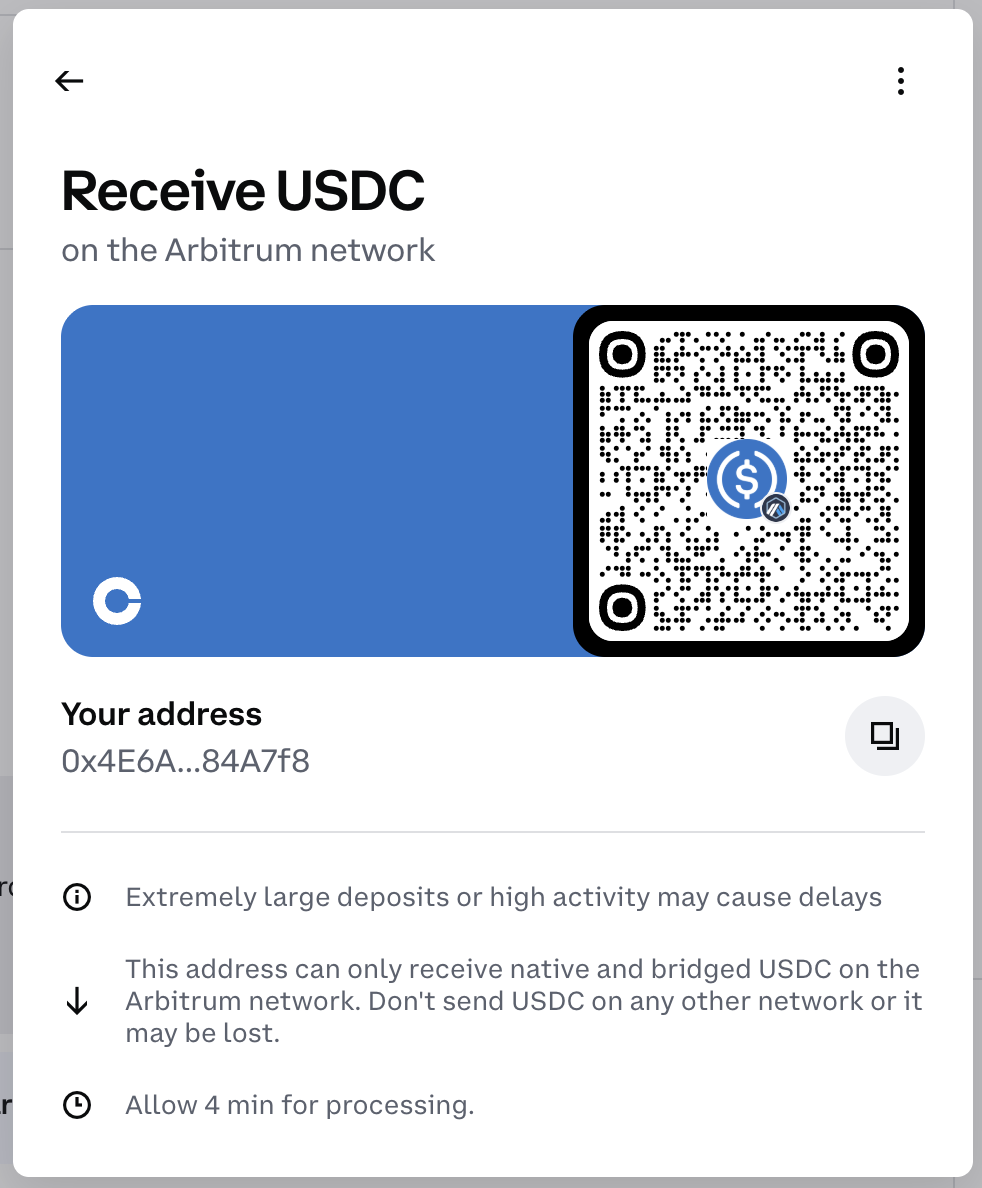
- On the off-ramp or exchange of your choice (such as Coinbase), ask to receive USDC on Arbitrum
- Important: Double check that it's on Arbitrum. If you use the wrong network, your funds can be lost.
- Copy the Arbitrum USDC address from your exchange
- Paste that address into the OneShot withdrawal form and complete the withdrawal
Click to see an example screenshot
Option 2: On Your Computer
Step 1: Export Your Wallet
- Go to the export page
- Click "Login" to authenticate with your OneShot account
- Click "Export Wallet" to open the Privy wallet export modal
- Follow the prompts to securely export your wallet's private key
- Important: Save your private key in a secure location. You'll need it in the next step.
Step 2: Import Your Wallet into MetaMask
- If you don't have MetaMask installed, download it from metamask.io
- Open MetaMask and click on the account icon in the top right
- Select "Import Account"
- Paste your private key from Step 1
- Click "Import" to add your OneShot wallet to MetaMask
Step 3: Connect a VPN
Hyperliquid's website restricts access from certain regions. To access app.hyperliquid.xyz:
- Install a VPN service if you don't already have one (we recommend NordVPN)
- Connect to a VPN server in a supported region (e.g., Canada, UK, or other non-restricted countries)
- Verify your VPN connection is active before proceeding to the next step
Step 4: Access Hyperliquid
- With your VPN connected, navigate to app.hyperliquid.xyz
- Click "Connect Wallet" in the top right corner
- Select MetaMask from the wallet options
- Approve the connection in the MetaMask popup
- Your funds from OneShot will now be visible in your Hyperliquid account
Step 5: Sell Your Assets
- On Hyperliquid, navigate to the spot trading interface
- Sell your HYPE tokens or other assets for USDC using market orders
- Once you have USDC in your account, click on your account balance
- Move the USDC from your spot account to your perps account (this is required before you can withdraw)
Step 6: Withdraw to Arbitrum
- Select "Withdraw" to initiate a withdrawal
- Choose "Arbitrum" as your destination network
- Enter the amount of USDC you want to withdraw
- Confirm the withdrawal transaction
- Your USDC will be sent to your wallet address on the Arbitrum network
- You can now view your USDC in MetaMask by switching to the Arbitrum One network
Step 7: Send USDC to Your Exchange
- Find an exchange or off-ramp of your choice (such as Coinbase) and ask to receive USDC on Arbitrum. Double check that it's on Arbitrum - if you use the wrong network, your funds can be lost.
- Copy the Arbitrum USDC address from your exchange and send your USDC from MetaMask to that address
Need Help?
If you encounter any issues during the withdrawal process, please contact our support team.
Contact SupportSecurity Warning
Never share your private key with anyone. OneShot support will never ask for your private key. Store it securely and only use it to import your wallet into trusted applications like MetaMask.